Guide
Adobe Lightroom is one of the most trusted photo editors for phones. It helps you fix exposure, correct colour, apply presets, remove distractions and organise your photo library. Because some of its best tools sit behind a paid plan, many people search for Lightroom Mod APK, Lightroom Pro APK or Lightroom Premium Unlocked.
This guide explains what Lightroom offers, how the free, premium and mod versions differ, what your phone needs, how to install the app, how presets work and how to fix common problems. It also covers the risks of unofficial files, so you can decide with the full picture. You can also read our Lightroom APK app page for a quick overview.
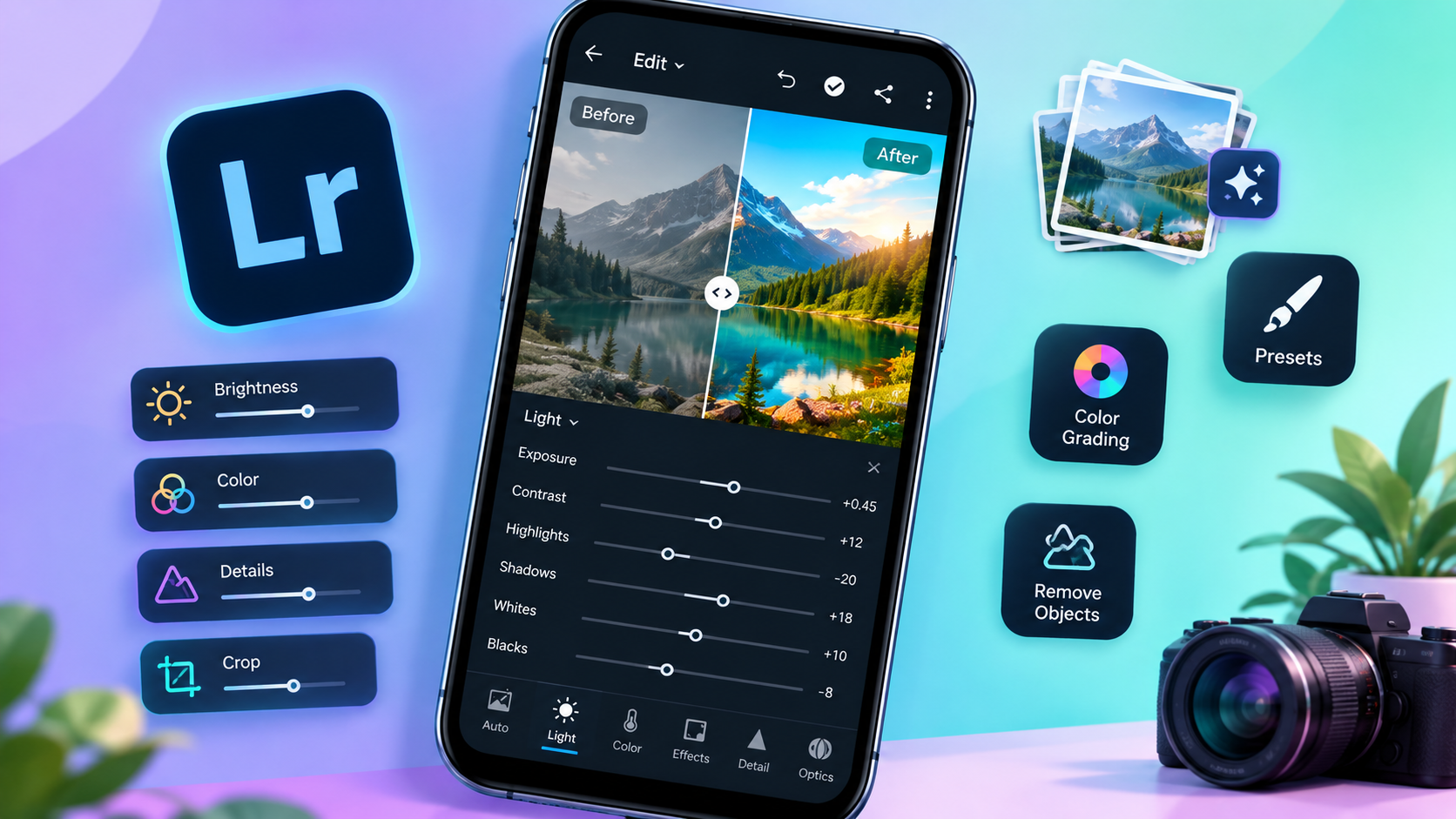
1. What is Lightroom Mod APK?
A Lightroom Mod APK is an Android installation file that someone other than Adobe has changed. Websites that share these files may call them Lightroom Premium APK, Lightroom Pro APK, Premium Unlocked or No Ads. What each file really does depends on the publisher, and a page saying "unlocked" is not proof that anything works, that the file is genuine or that it is safe.
Adobe Lightroom itself is an official app by Adobe, available on Google Play and the Apple App Store in supported regions. If your goal is better photos, the free version is a good place to start, and you can decide on a paid plan later.
2. App information
| Detail | Info |
|---|---|
| App name | Adobe Lightroom: Photo Editor |
| Developer | Adobe |
| Category | Photography and image editing |
| Platforms | Android, iPhone, iPad, desktop |
| Free access | Core editing, capture, organisation and sharing |
| Premium access | Extra tools, cloud storage and services on paid plans |
| Main tools | Light, colour, detail, effects, presets, masking, healing |
| Official Android source | Google Play Store |
| Version and size | Changes with each update, check the store page |
Version numbers, file size and feature availability change often, so always check Adobe's listing and release notes. You can read the latest changes in Adobe's Lightroom mobile release notes, and find more app details on our Lightroom Mod APK page.
3. Main features of Lightroom
The tools you can use depend on your app version, device and plan. These are the features most people care about.
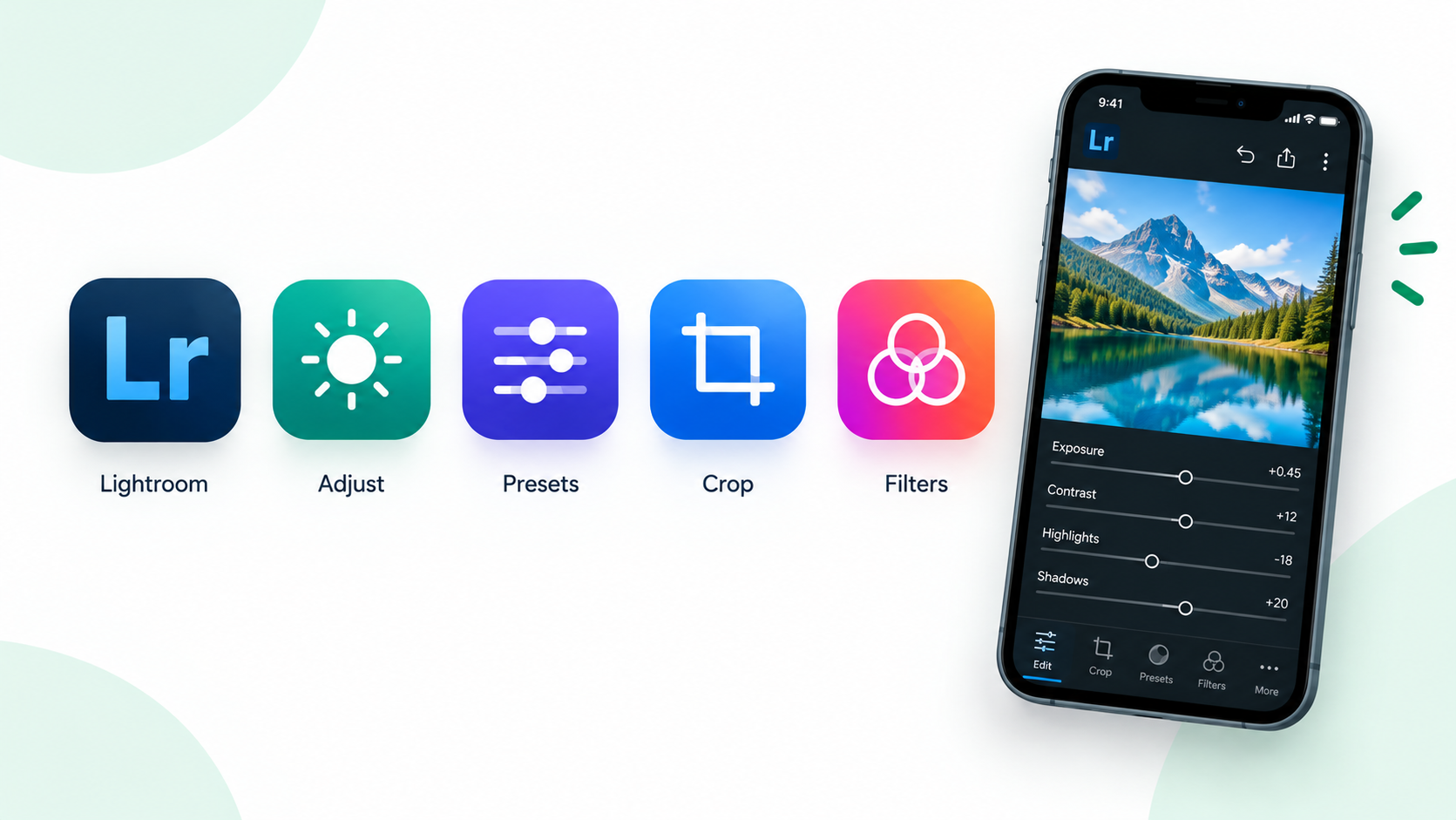
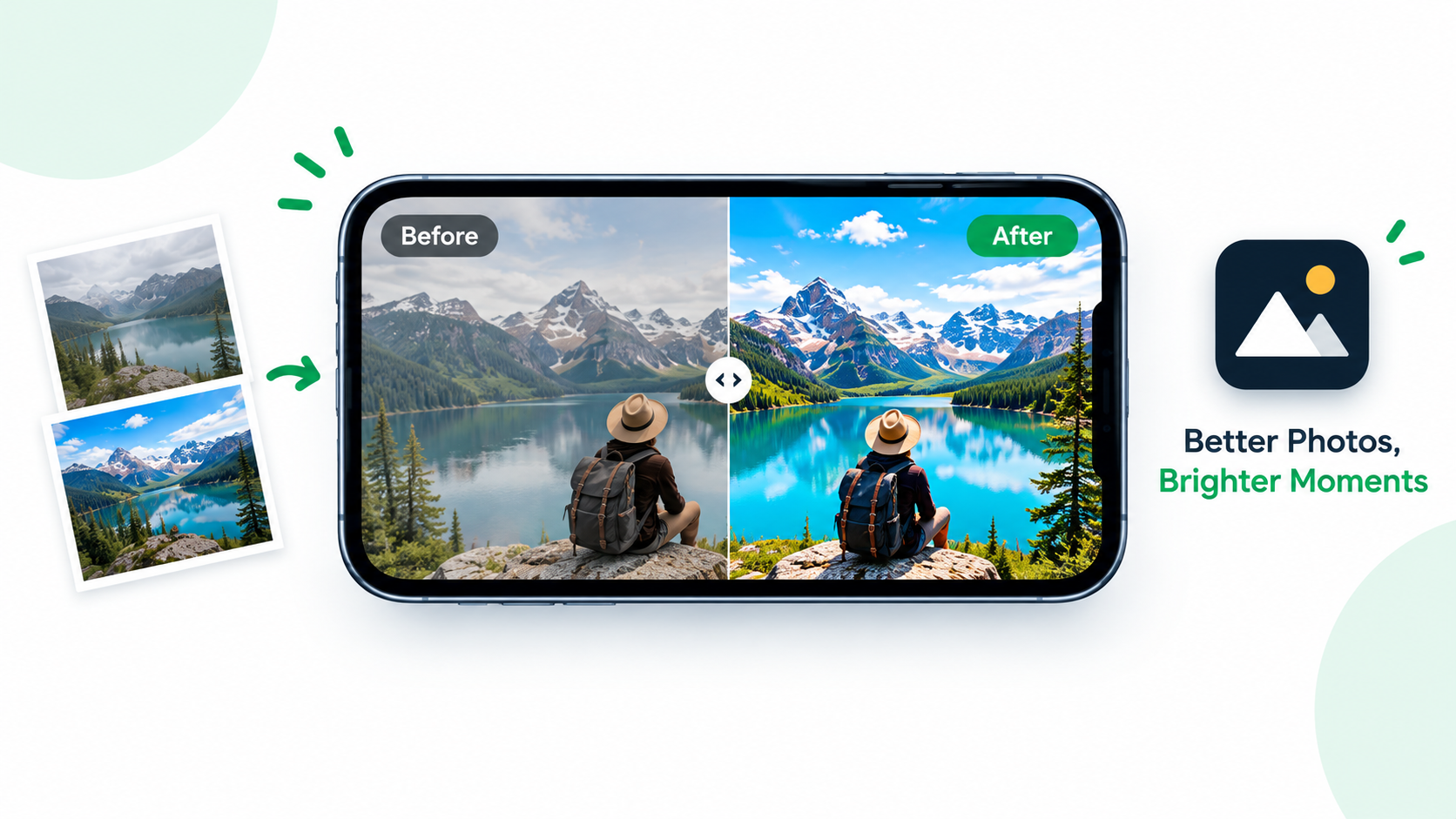
Professional photo editing. Sliders for exposure, contrast, highlights, shadows, white balance and colour help you fix a dark or yellow indoor photo without a heavy filter. Start with light and colour, then add stronger effects.
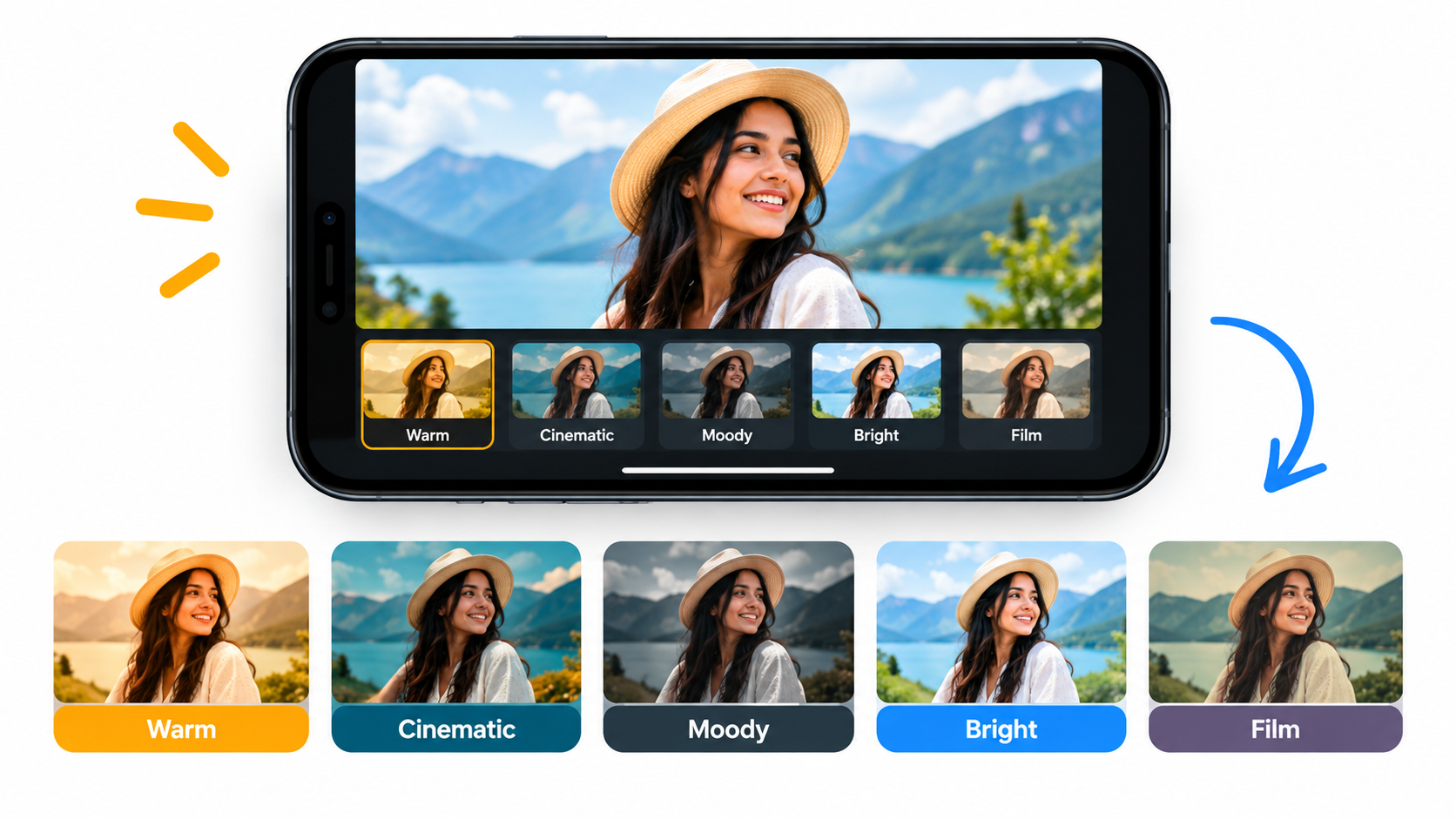
Presets and filters. A preset is a saved set of edits that gives a group of photos the same look, such as cinematic, warm lifestyle, dark and moody, film colours or natural skin tones.
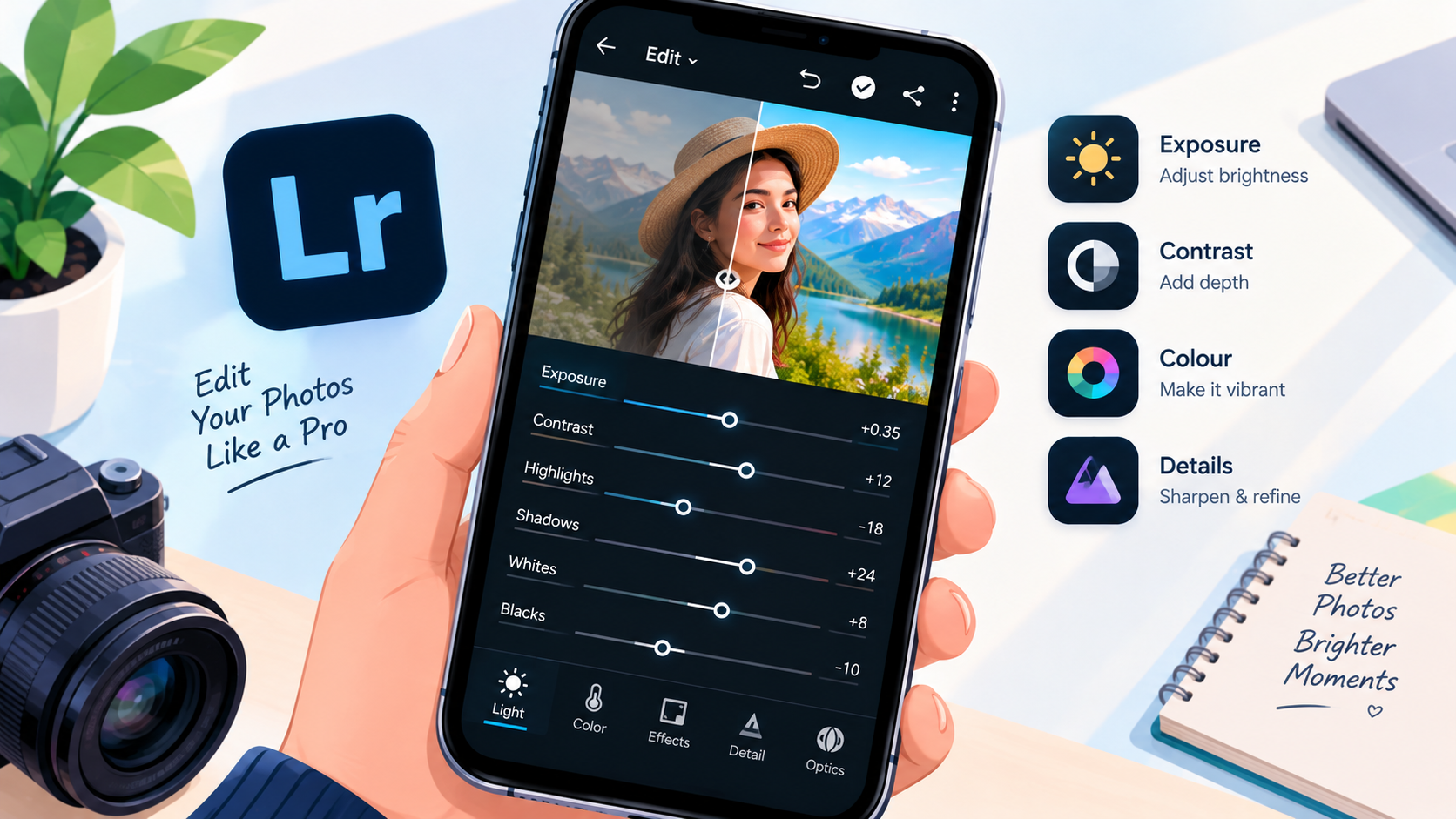
Selective adjustments and AI masking. You can brighten a face without lifting the background, or change the sky while leaving the landscape alone. AI selection speeds this up, but check edges around hair, reflections and busy backgrounds.
Healing, retouching and object removal. Remove small blemishes, clean up distractions in travel shots and blend repairs into their surroundings. Always zoom in to check the result looks natural.
RAW editing. RAW files keep more image data, which gives you more room to recover highlights and correct colour. Support depends on your camera, device and plan.
AI and generative tools. Adobe keeps adding AI editing features. Some need an internet connection, a compatible device or a paid plan. A third-party file that claims to unlock them cannot make Adobe's online services work.
Colour grading. Build a warm sunset look, cool cinematic tones or a clean commercial style. Use skin tones and white objects as a reference so the colour stays believable.
Video editing. Lightroom mobile can adjust light and colour on video and trim clips. It is not a full timeline editor, so use a dedicated video app for complex edits.
Export and sharing. Choose size and quality based on where the photo will be used.
| Use | What to think about |
|---|---|
| Instagram and social media | Correct dimensions and colour |
| Website images | Balance quality and file size |
| Printing | Required size and print resolution |
| Portfolio | High quality, keep originals |
| Client delivery | Consistent settings and clear file names |
4. Lightroom Free vs Premium vs Mod APK
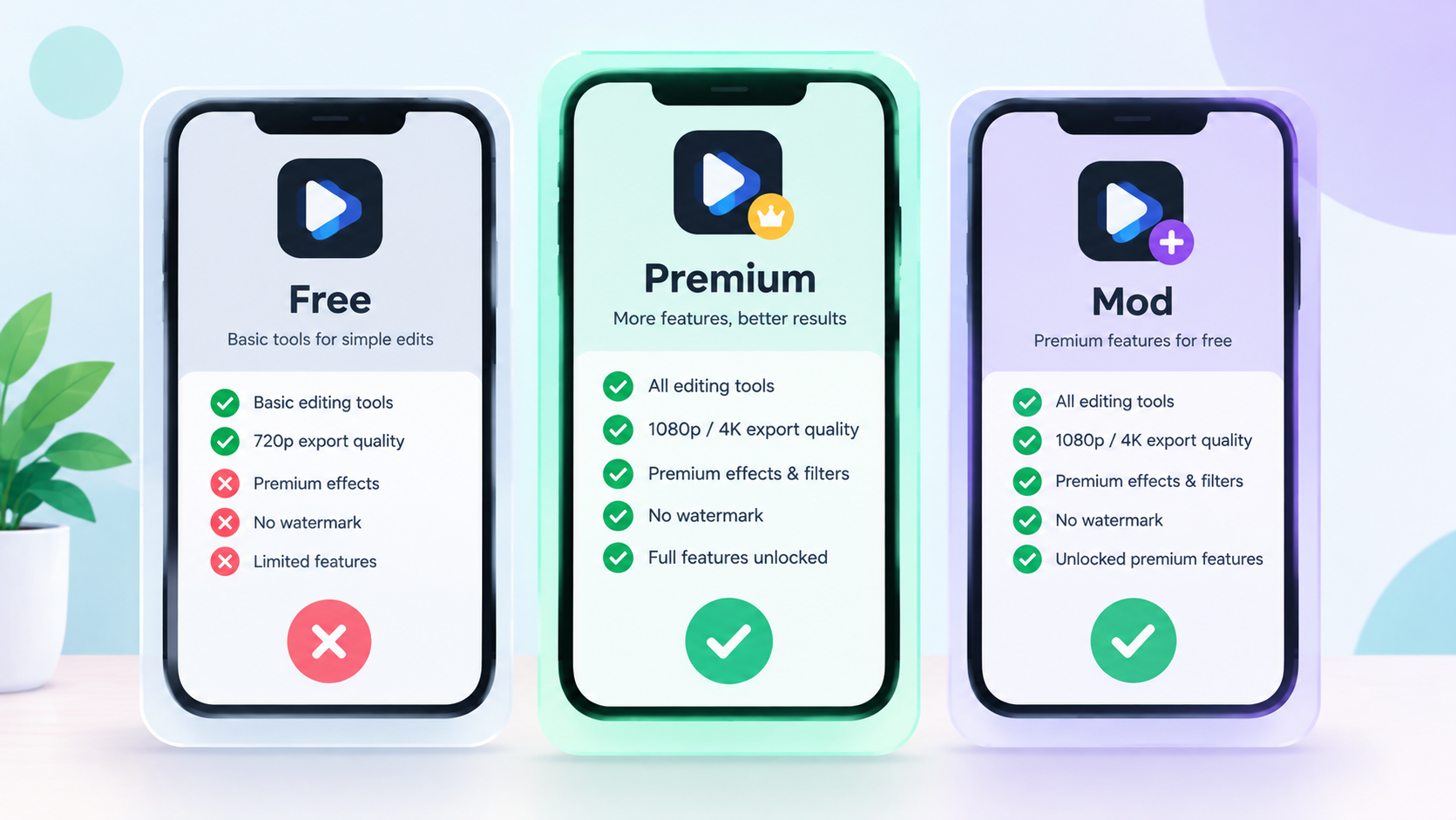
This comparison shows the difference between the official versions and an unofficial file. The mod column reflects what third-party sites claim, which cannot be taken for granted.
| Point | Official free | Official premium | Mod APK |
|---|---|---|---|
| Core editing | Available | Available | Depends on the file |
| Basic presets | Available | Available | Depends on the file |
| Advanced tools | Some limits | Eligible tools included | Not guaranteed |
| Premium presets | Plan dependent | Under eligible plans | Claims need checking |
| Cloud storage and sync | Limited | Under eligible plans | May not work reliably |
| Official updates | Yes | Yes | Not guaranteed |
| Official support | Yes | Yes | No |
| Security assurance | Official channel | Official channel | Cannot be assumed |
| Cost | Free | Paid plan | "Free", but with risk |
A mod file may say it gives premium access for nothing, but that does not mean it has the same account integration, updates or support as a real subscription. Adobe's mobile FAQ lists which features are free and which need a plan, so check it before deciding whether you need Premium at all.
5. Lightroom presets and how to use them
Presets help you get a repeatable style without adjusting every slider by hand. Here is a simple routine that works for most photos:
- Choose a suitable photo. A preset made for a bright landscape rarely works on a dim indoor portrait
- Apply the preset. Open the photo, browse presets and pick one that matches your idea
- Fix exposure and white balance. Check brightness, highlights, shadows and temperature
- Refine colour and detail. Adjust contrast, saturation, texture and sharpness gently
- Export a test. Compare it with the original on the screen where people will see it
Presets come from Lightroom itself and from third-party creators. Some are free and some are sold, and downloading one does not give you the right to share it or use it commercially. Check the format, compatibility and licence before you import a file.
6. Is Lightroom Mod APK safe?
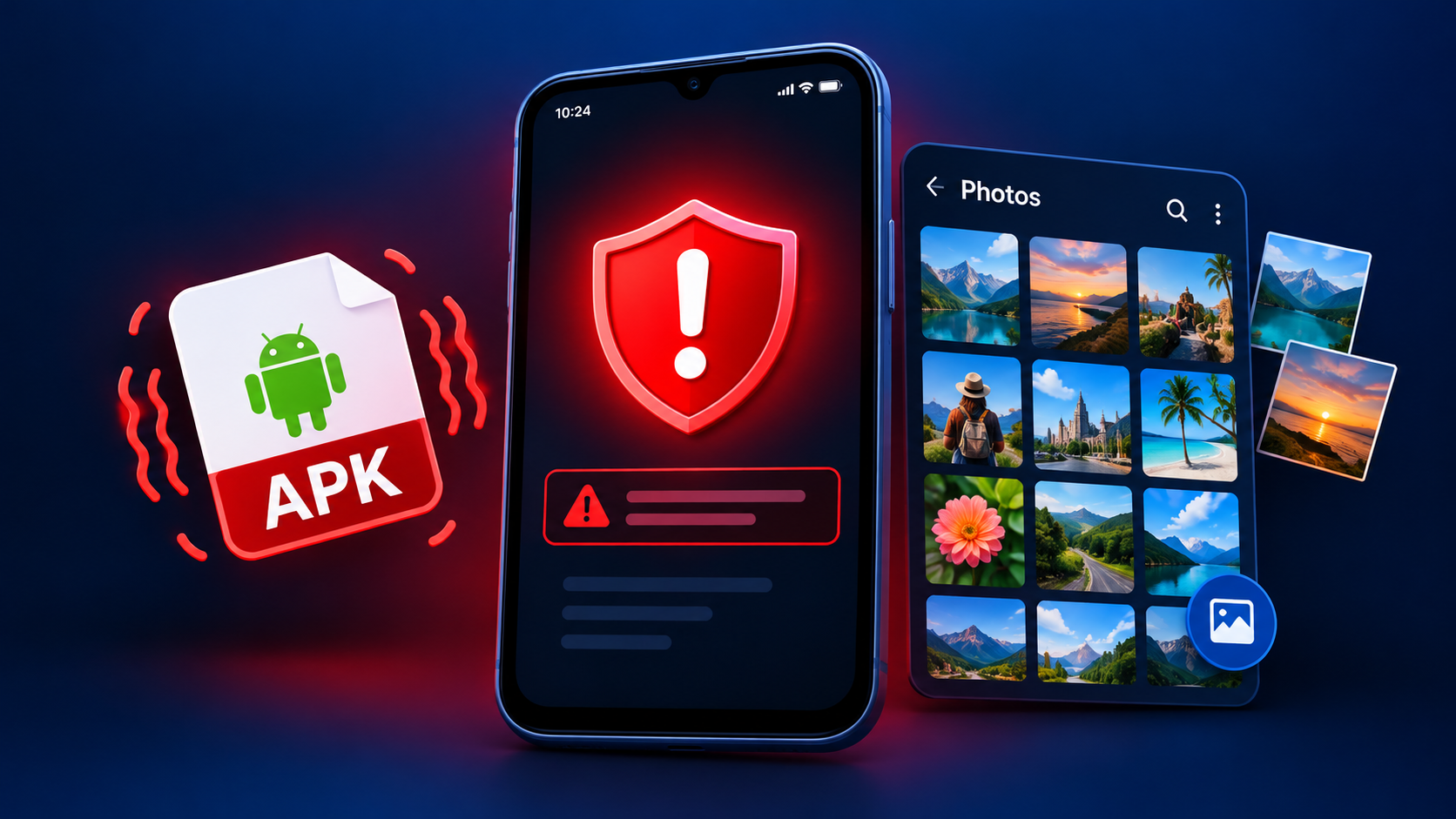
No one can call every modded file safe or unsafe from its name alone. A third party has changed the package, and Adobe has not reviewed it, so its permissions, behaviour and connections to outside services can differ from the real app. A security badge on a download page is not proof, and one clean scan does not guarantee safety.
Possible problems include:
- Harmful or unwanted code
- Unexpected ads or background activity
- Access to device data the app does not need
- Sign-in and cloud sync problems
- Lost edits or projects
- Crashes after an Android or app update
- Exposure of your personal photos
If you are still checking an APK from outside an official store, take these steps:
- Check the source and prefer the official Google Play listing
- Verify the publisher, because a familiar icon proves nothing
- Review permissions and question any that do not fit a photo editor
- Keep Android security features switched on
- Never enter important account passwords into an app you cannot verify
- Back up your original photos first
7. Lightroom system requirements
Performance depends on your hardware, Android version, memory and storage, and on how heavy your edit is. Adobe lists the following for the official app:
| Item | Minimum | Recommended |
|---|---|---|
| Android version | Android 8.x or later | Latest supported version |
| Processor | ARMv8 or x86-64 | Octa-core |
| RAM | 4 GB | 8 GB or more |
| Storage | 32 GB internal | 128 GB or more |
These numbers can change with new releases, and some advanced features have extra device requirements. Check Adobe's official technical requirements before you install.
On an older phone, large RAW files and AI tools will be slower. Work with smaller images, close background apps and keep enough free storage. If Adobe no longer supports your phone's processor, an unofficial package will not fix that limit.
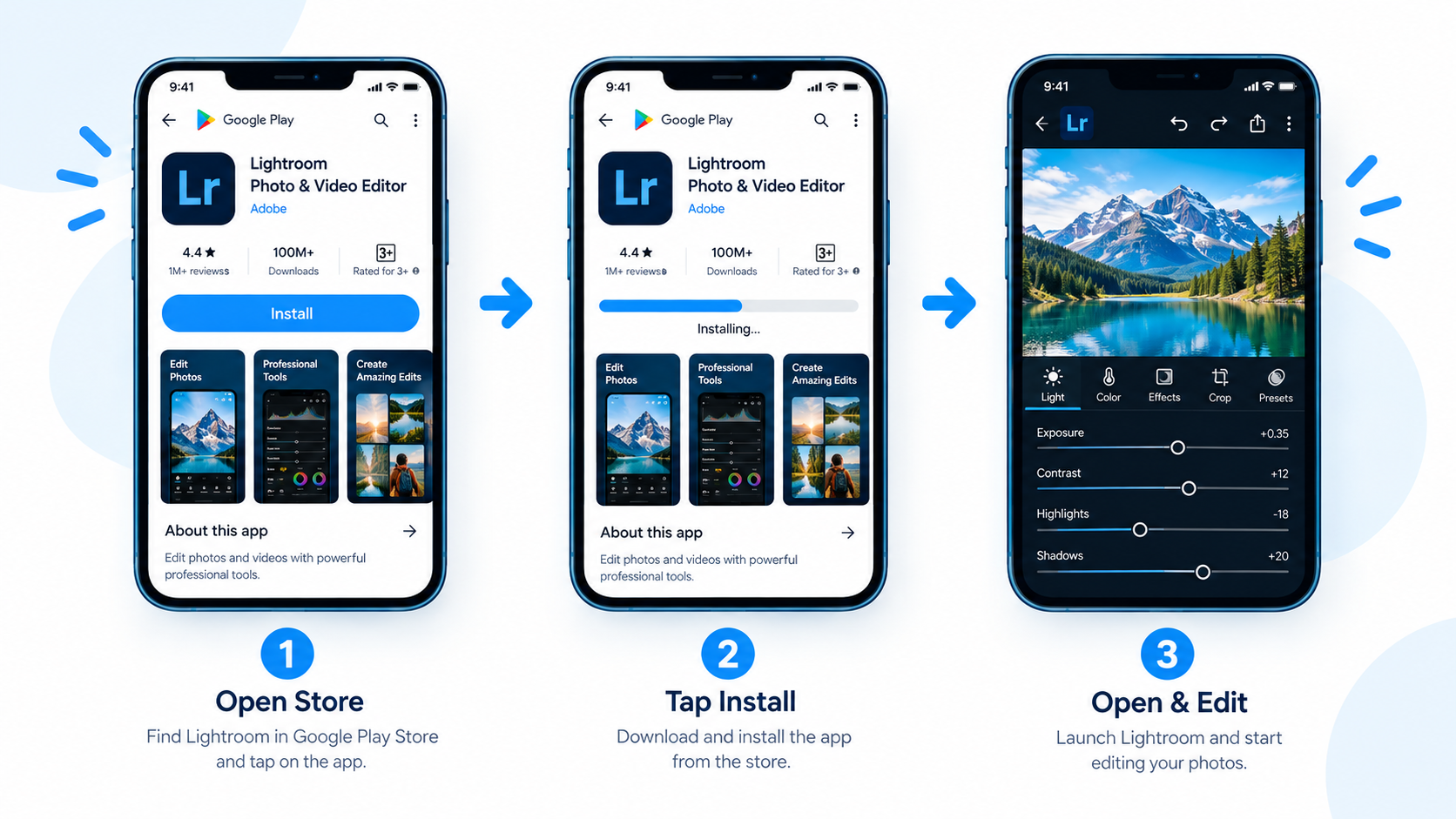
8. How to download and install Lightroom on Android
- Open Google Play on your phone
- Search for Adobe Lightroom
- Confirm Adobe is listed as the developer
- Check compatibility and features
- Tap Install and wait until it finishes
- Open the app and follow the setup steps
9. "App not installing" error: possible fixes
- Not enough storage: free up space and try again
- Old version already installed: update or uninstall it first, then reinstall
- Full cache: clear the cache of Google Play and your file manager
- Outdated Android or app: check for system and Play Store updates
- Device not supported: check the official requirements above
- Temporary glitch: restart your phone and try again
10. Lightroom on iPhone and PC
iPhone and iPad: an APK is an Android file, so it cannot be installed on iOS. Look for Adobe Lightroom in the Apple App Store, and check the developer, subscription details and device compatibility.
PC and Mac: Adobe offers desktop Lightroom products for compatible computers. Running an Android file in an emulator does not turn an unofficial package into the real desktop app. See Adobe's official Lightroom website for the current options.
11. Common Lightroom problems and fixes
Lightroom is slow. Close unused apps, free storage, restart your phone and test a smaller image. If only one file is slow, check its format and edit history.
Lightroom keeps crashing. Restart the app and the phone, then update. Back up your photos before reinstalling or clearing app data. If it continues, contact Adobe support with your phone model, Android version and app version.
Cannot import a photo. Check that the format is supported and that Lightroom has photo and file permission. Try another picture to see if the issue is one file or the whole library.
Not syncing. Sync depends on your account, connection, storage and plan. Check that you are signed in to the right account, and do not delete local files until your originals and edits are safely backed up.
Premium features missing. Confirm you are signed in to the correct Adobe account, that your plan is active and that your device supports the feature. Unofficial files may not give reliable access to account or cloud features.
Presets not working. Check the preset format and instructions, then adjust exposure and colour after applying it, because your original photo may be very different from the creator's sample.
12. Best Lightroom alternatives
| App | Good for |
|---|---|
| Snapseed | Free mobile editing with many adjustment and retouch tools |
| Picsart | Creative effects, stickers and social content |
| VSCO | Photography-style presets and consistent looks |
| Canva | Combining photos with text and layouts |
| Adobe Photoshop | Compositing, layers and detailed retouching |
Features and prices change, so compare each app's official listing before choosing.
13. Pros and cons of Lightroom
Pros
- Strong light and colour controls
- Presets for a consistent style
- Selective and AI masking tools
- RAW editing on supported devices
- Healing and object removal
- Free version with core tools
Cons
- Some tools need a paid plan
- Needs a fairly capable phone
- Learning curve for new users
- AI features may need internet
- Not a full video editor
14. Frequently asked questions
What is Lightroom Mod APK?
It is a term for a third-party edited Android package that claims to change features in Adobe Lightroom. What it really does depends on the exact file.
Is Lightroom Mod APK free?
Websites may advertise it as free, but that does not prove premium services work or that the file is legitimate. Adobe offers a free version with core tools, and extra features need an eligible plan.
What is Lightroom Premium APK?
It is a phrase publishers use for a package that claims to provide premium features. For the official premium set, check Adobe's membership information.
Does the mod APK unlock all premium presets?
Some publishers say so, but it is not independently verified for every file, and preset access can depend on version and plan.
Is Lightroom Mod APK safe for Android?
It cannot be assumed safe just because a website says it has been tested. Use official channels when you can.
Which Lightroom features are free?
Core editing, capture, organisation and sharing are free. Some advanced tools, cloud storage and sync need a plan. See Adobe's current mobile FAQ.
Does Lightroom need an account or login?
You can start using the app, but sign-in is needed for cloud sync and account-linked features.
Can Lightroom edit RAW photos?
Yes, on compatible devices and supported file types. Check Adobe's camera and device compatibility list.
Does Lightroom have AI editing?
Yes, in supported versions. Availability depends on the tool, device, plan and release.
Can I use Lightroom on iPhone or PC?
Yes. Use the App Store for iPhone and Adobe's desktop products for a computer. An APK cannot be installed on iOS.
Why are my presets not working?
Format, missing profiles and unsupported settings are common causes. Adjust exposure and colour after applying one.
What is the latest Lightroom version?
Check the official release notes or your app store, not an old number on a third-party download page.
15. Final verdict
Lightroom is a capable editor for photographers, creators and anyone who wants better control over light and colour. For most people, the free version already covers everyday edits, and a paid plan makes sense once you need advanced masking, cloud storage or premium presets.
If you are looking at Lightroom Mod APK, Pro APK or Premium Unlocked files, remember that unofficial claims do not guarantee real premium access, working cloud services or a secure install. Start with the official app, keep your original photos backed up, and confirm technical details from official sources. For a short summary of the app, visit our Lightroom APK page.
Advertisement spaceArticle Inline